
|
Navigation from your Home screen:
 >

Internal Use agreements track the usage of your fleet for internal purposes (for example, an employee is moving a unit from one location to another, or training another employee, or refueling the vehicle). For more information about Internal Use agreements, see "Internal Use Agreements".
How to Open an Internal Use Agreement on Mobile
You must have Internal Use Service turned on by TSD. Contact TSD Support at support@tsdweb.com for assistance.
Quick Steps
| 1 |
Tap |
|
| 2 |
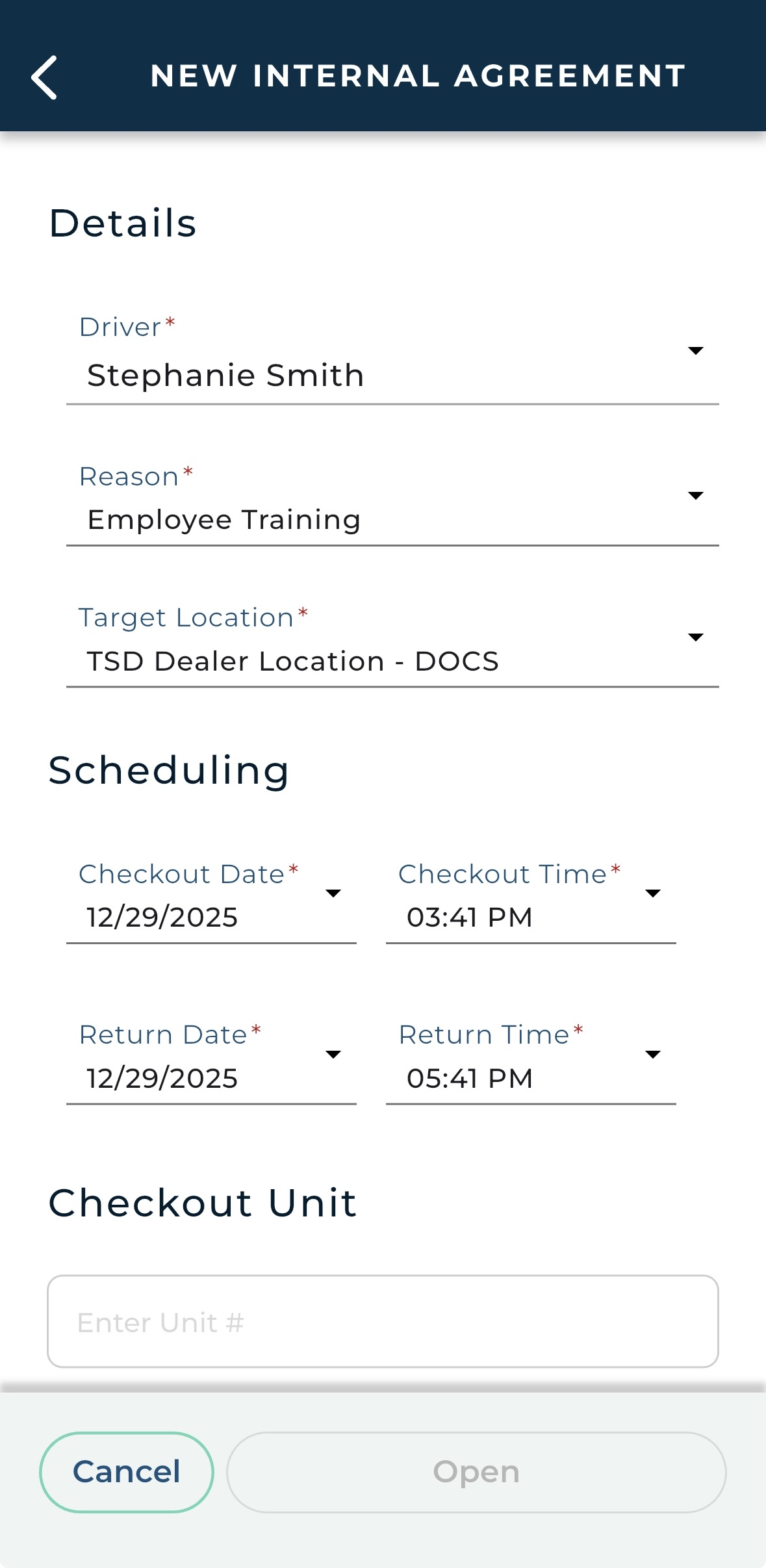
Fill in details (such as driver, reason, and target location) and scheduling. |
|
| 3 |
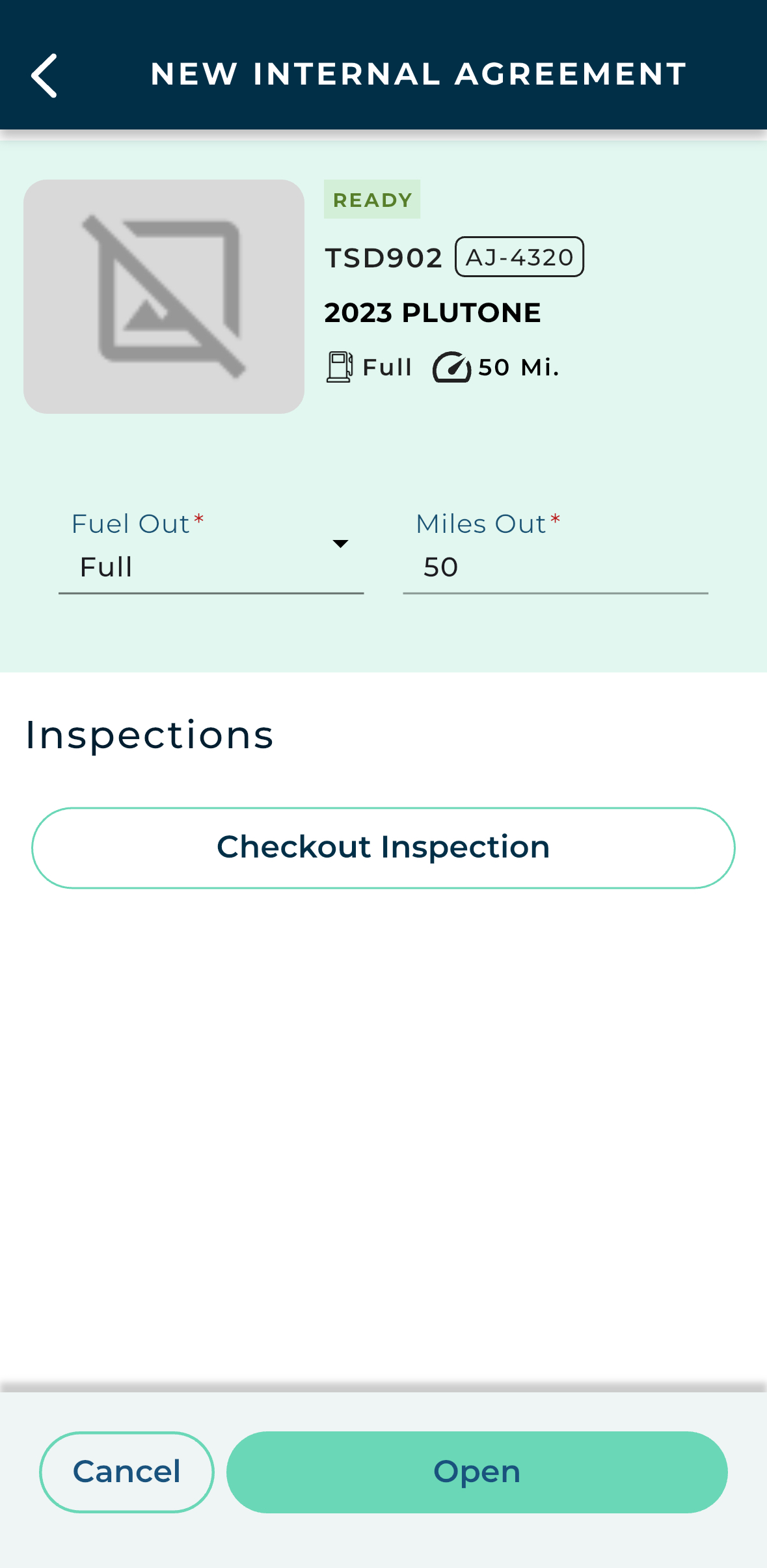
Assign a unit and tap to take photos and mark damage |
|
| 4 |
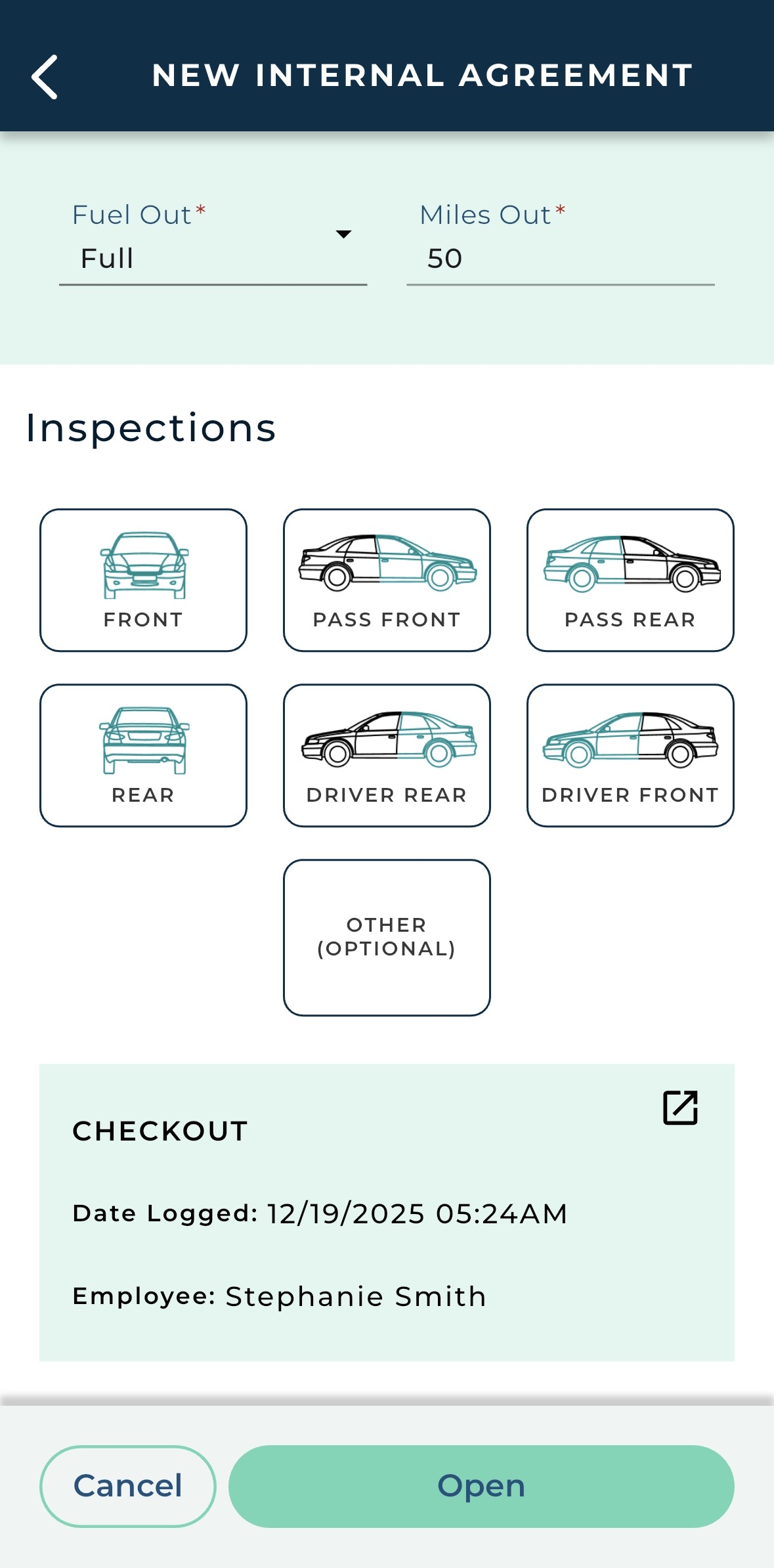
Tap to complete the agreement. |
|
Full Walkthrough
1. Begin the Open Process from the Menu
Tap  >
 .
2. Fill in Details and Scheduling
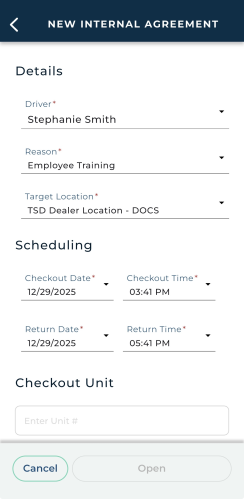
- In the Details section, fill in all required fields, including a Driver, a Reason for the unit usage (e.g., Transfer to Another Office), and the Target Location to which the unit is being driven.
- In the Scheduling section, verify the Checkout Date and select a Return Date of no more than 29 days into the future.
3. Checkout: Assign a Unit
Choose how you want to add a unit to this agreement:
- Type the full, exact Unit Number and tap . (After a unit is assigned, this button becomes ).
- Select from a list of . The list is available for searching by VIN, Unit Tag, Unit Number, or Plate, and filtering by Model.
- Scan a QR code or VIN barcode by tapping .
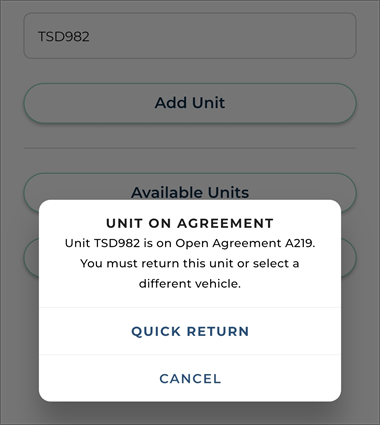
Hover to view the full-sized image.
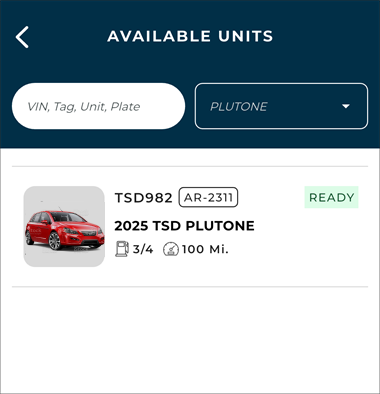
Hover to view the full-sized image.
(After a unit is assigned, you can replace it, if needed, using any of the above methods.)
Verify the assigned unit's Fuel Out / Battery Out and Miles Out.
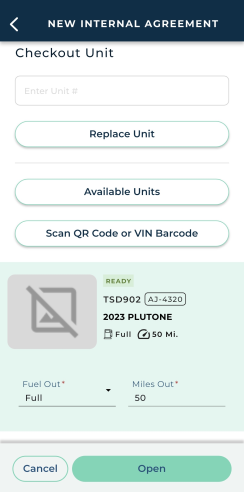
4. Inspect the Unit
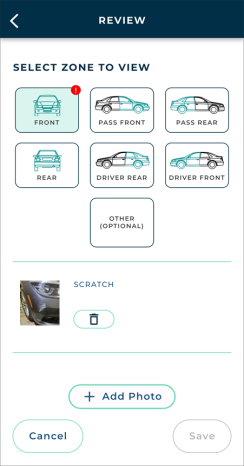
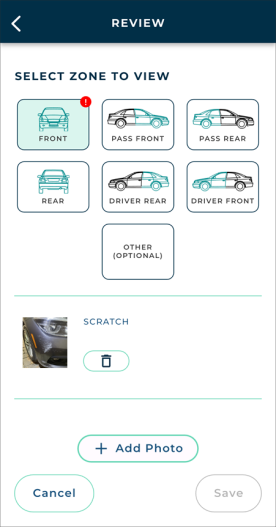
Tap to perform a checkout inspection of the unit and take photos and mark damage, as needed, for all listed zones of the vehicle.
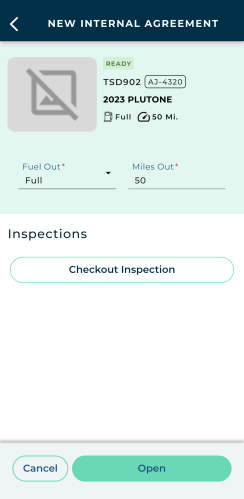
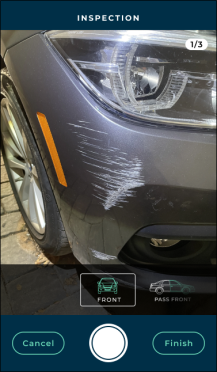
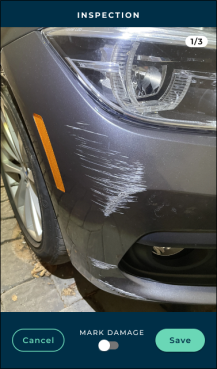

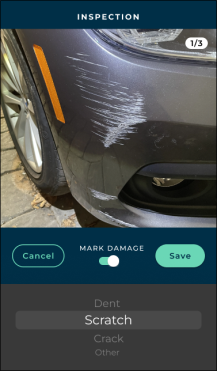
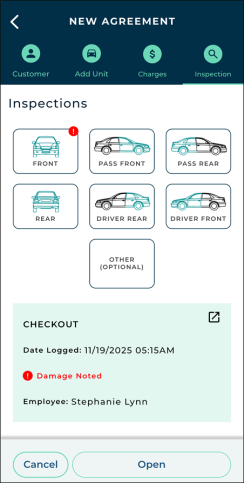
 ) within the summary to review this inspection for each zone. When doing so, you can do the following:
5. Open the Internal Use Agreement
Tap to complete (save) the open Internal Use agreement.
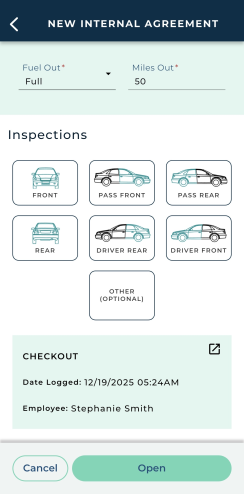
The agreement is opened! You are returned to the Home screen, where a brief confirmation message is displayed in the bottom left corner.
How to Close an Internal Use Agreement
You can use the mobile app to close an Internal Use agreement when the unit is returned.
Quick Steps
| 1 |
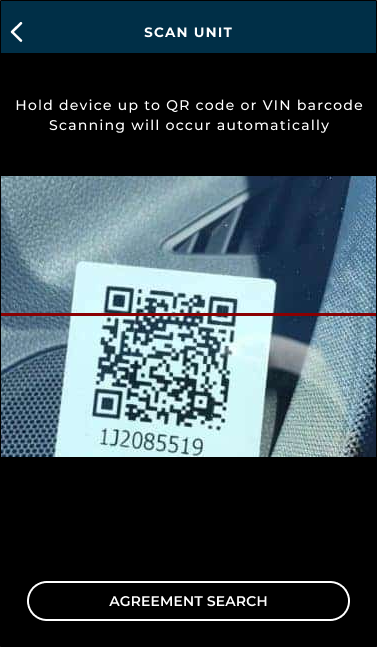
Access an agreement from the Dashboard or tap Close, then scan the unit or search for the agreement. |
|
| 2 |
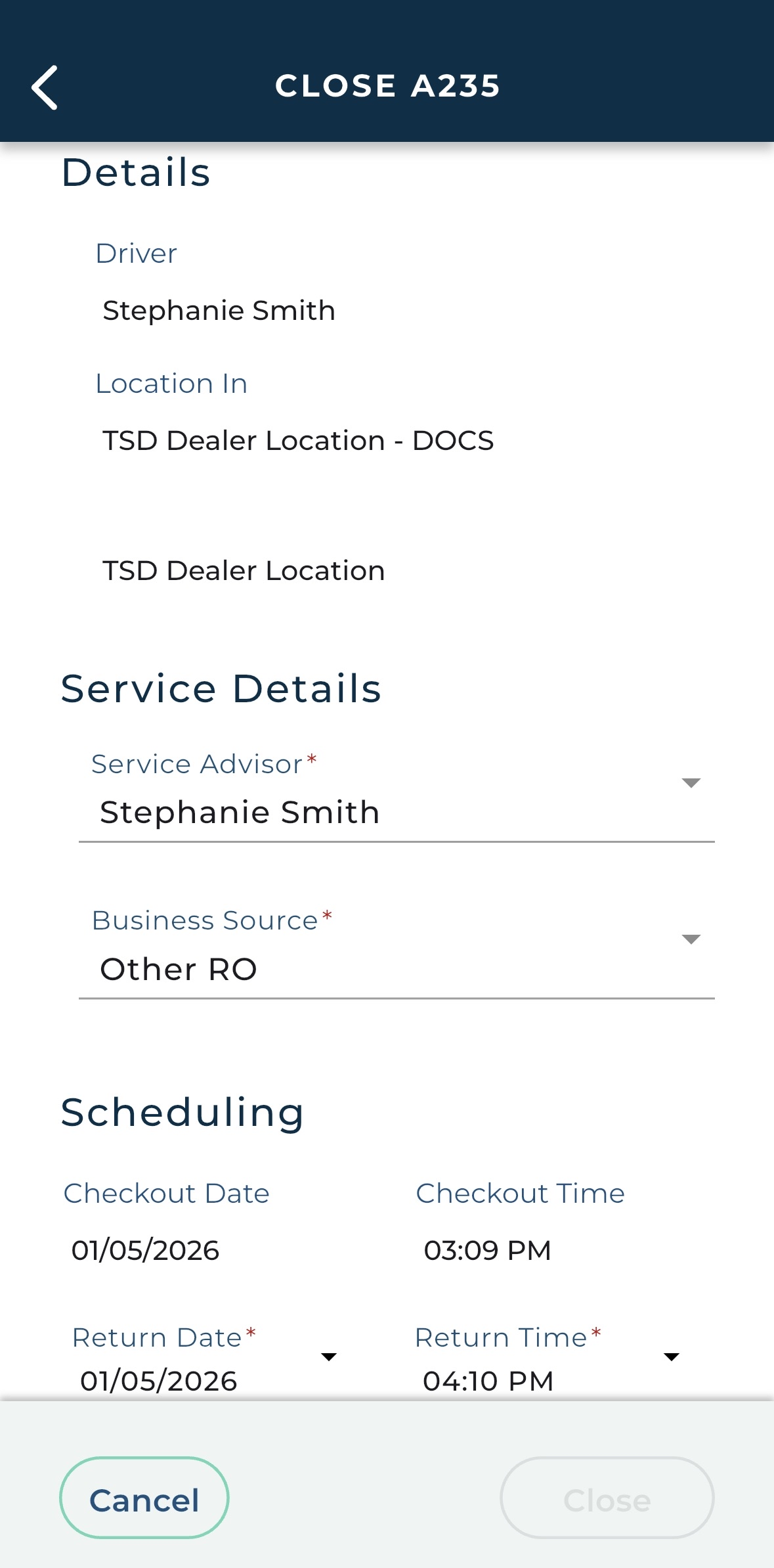
Fill in return information (service details, scheduling). |
|
| 3 |
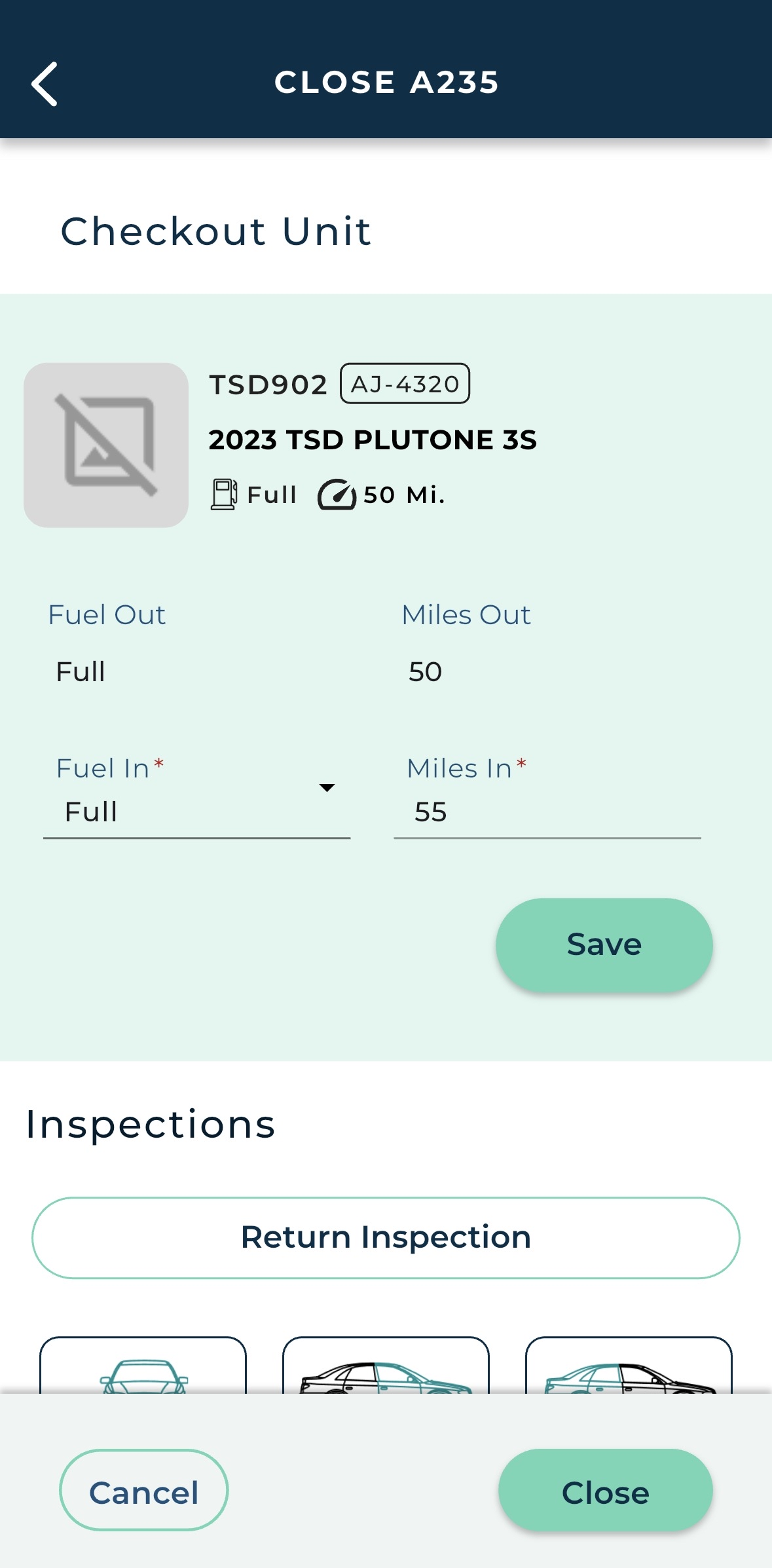
Verify returning unit details and tap . |
|
| 4 |
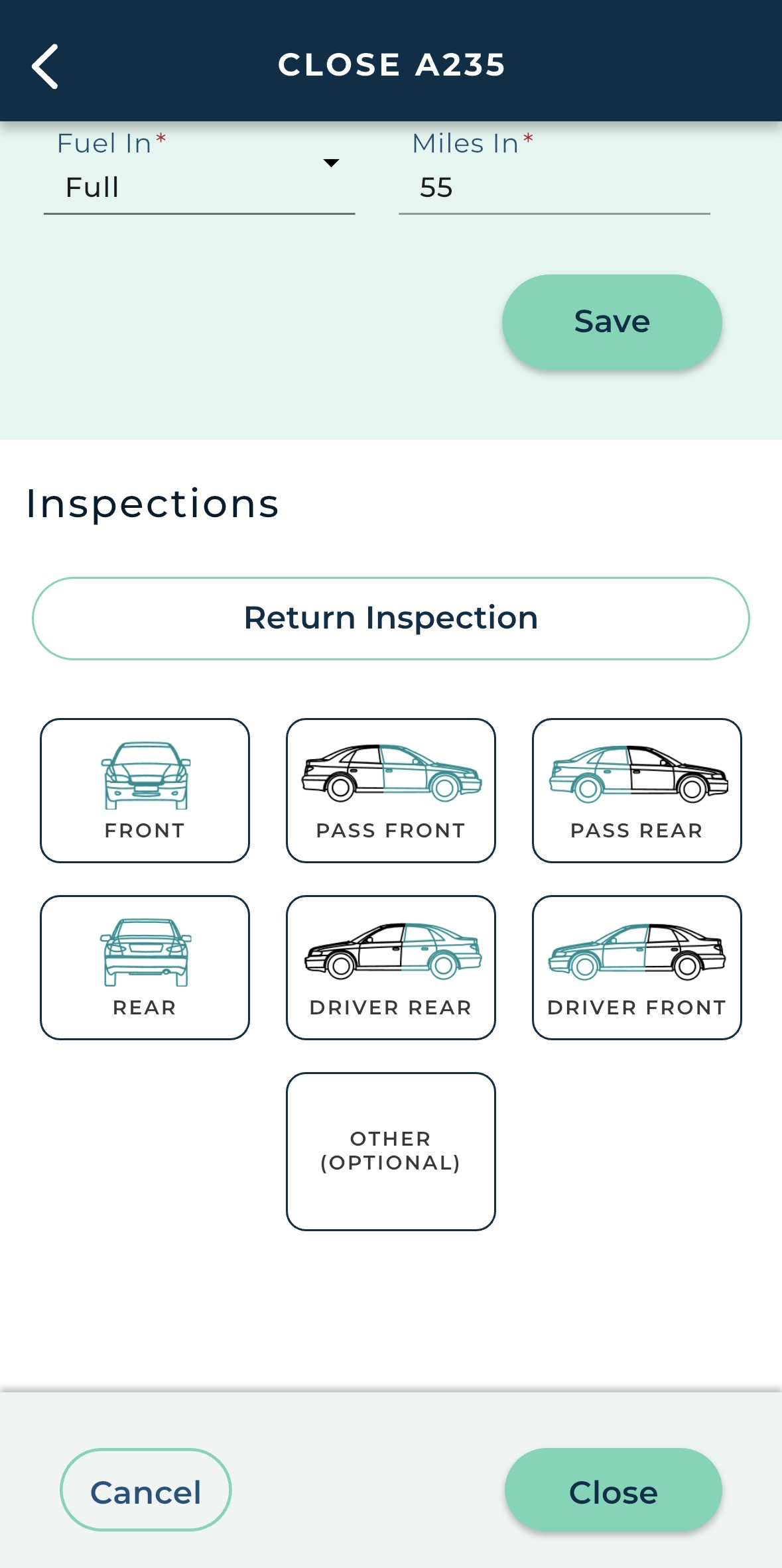
Tap to take photos of the returning unit and mark damage. |
|
| 5 |
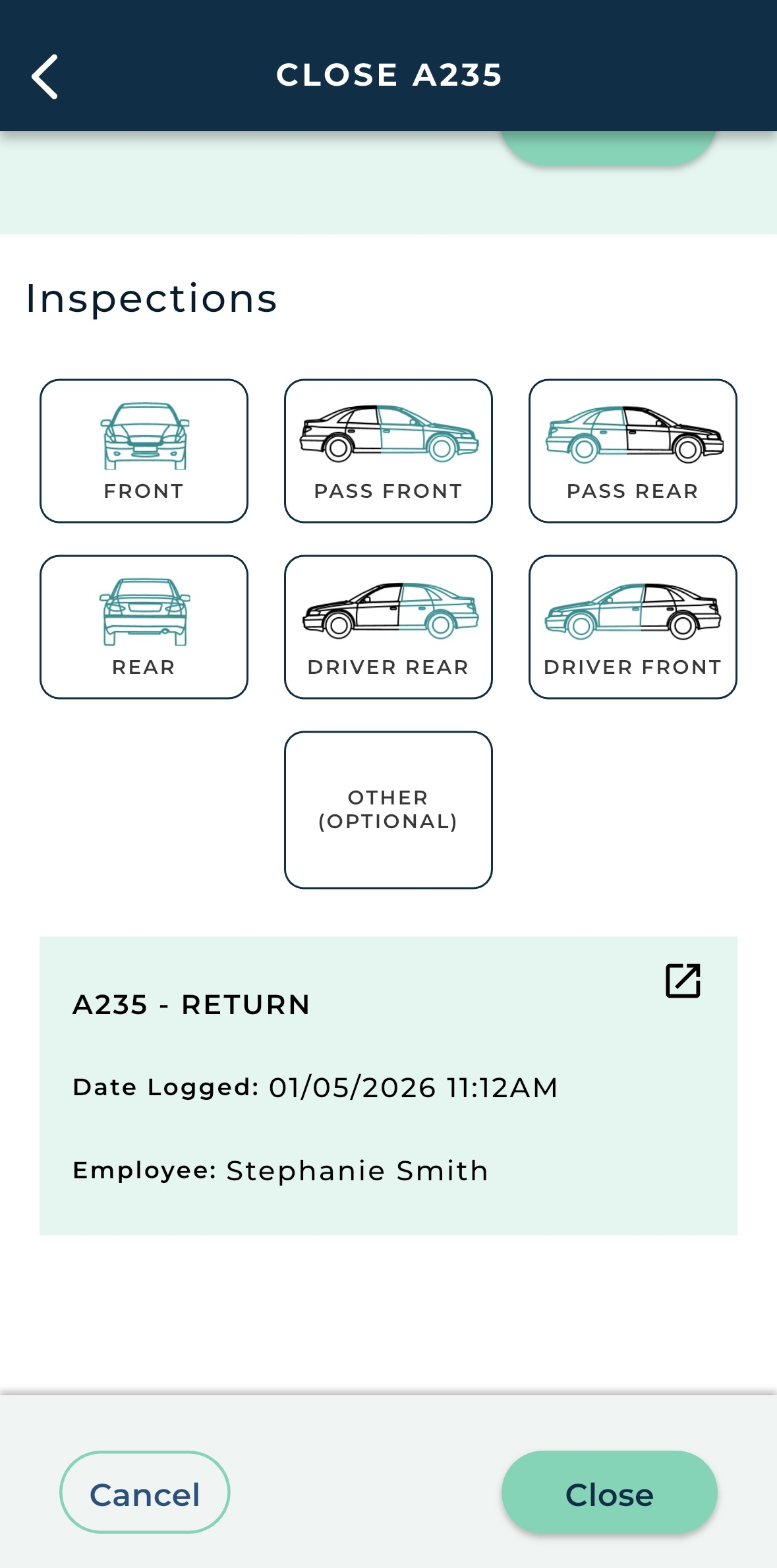
Tap . |
|
Full Walkthrough
1. Start the Close From 'Home' (Scan or Search)
You can begin the close process from several places in the app. Choose whichever is most convenient for you.
 Option 1: Scan a Returning Unit / Search.

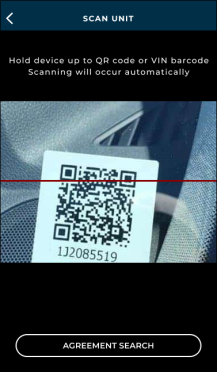
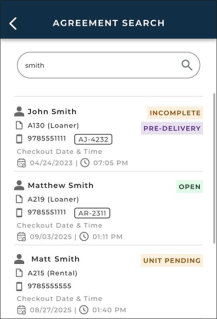
Option 2: Start from the Dashboard & Search.
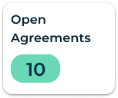
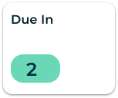
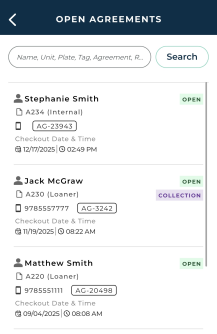
2. Fill in Returning Information
Key agreement information is displayed at the top: Driver and Location In.
- Fill in the Service Details, including Service Advisor and Business Source.
- Verify the Scheduling information (Return Date and Time).
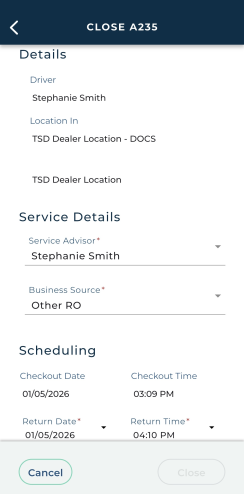
Hover to view the full-sized image.
3. Verify the Fuel / Battery and Mileage
Verify the returning unit information, such as Fuel / Battery In and Miles In. Tap .
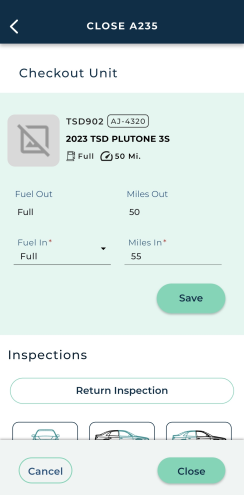
Hover to view the full-sized image.
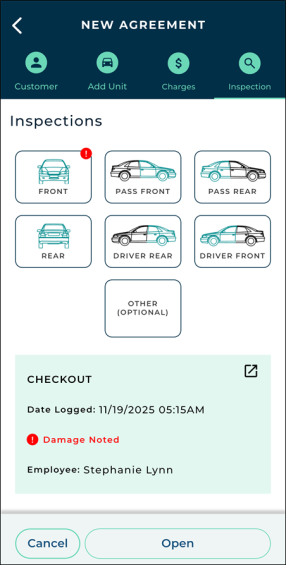
4. Inspect the Unit
Tap to perform a return inspection of the unit and take photos and mark damage, as needed, for all listed zones of the vehicle.
Hover to view the full-sized image.
3. Close the Agreement
Once all information is filled out, tap .
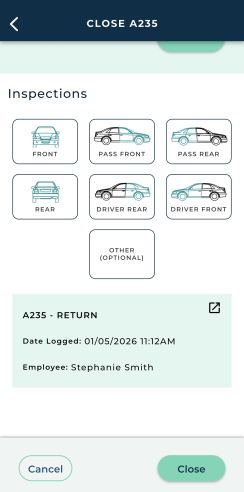
The app displays a short confirmation and you are returned to your 'Home' screen.
Note: After closing an Internal Use agreement, the unit's status is returned to its previous status, regardless of the Unit Default Return Status management setting. (For example, if the unit had a status of Dirty before being assigned to the agreement, it is set to Dirty after the agreement is closed.)
© 2026 TSD Rental, LLC